As the digital asset landscape continues to expand, the need for scalable and efficient blockchain solutions becomes increasingly critical. Polygon is a pioneering platform designed to enhance and transform Ethereum's capabilities by providing faster and more economical transactions. Known as a Layer 2 scaling solution and sidechain, Polygon allows for the creation of interconnected blockchain networks while maintaining the robust security and versatility of Ethereum. Its integration with MetaMask, a leading Ethereum wallet, empowers users with the ability to easily manage their assets across both ecosystems. This guide aims to demystify the process of adding Polygon to your MetaMask wallet, providing you with a gateway to a more versatile and cost-effective blockchain experience. In this guide, we'll walk you through the steps to seamlessly integrate Polygon into your MetaMask wallet.
Polygon Network Information
- Network Name: Polygon Mainnet
- RPC URL: https://polygon-rpc.com/
- Chain ID: 137
- Currency Symbol: MATIC
- Block Explorer URL (Optional): https://polygonscan.com/
How to Add Polygon to MetaMask
In the rapidly expanding universe of cryptocurrencies, the integration of different blockchain networks with your digital wallet is not just a convenience, it's a necessity. Here is how to add Polygon to your MetaMask wallet, covering both automatic and manual methods, as well as the process for mobile users.
Adding Polygon to MetaMask Automatically Using Polygonscan
Adding Polygon to MetaMask can be done automatically through Polygonscan. This method simplifies the process significantly:
-
Navigate to Polygonscan: Visit Polygonscan. At the bottom of the page, locate the "Add Polygon Network" button with a MetaMask icon.

Add Polygon Network button on Polygonscan -
Approve connection: Clicking this will prompt a MetaMask notification requesting permission to add the Polygon Network. Confirm the action.
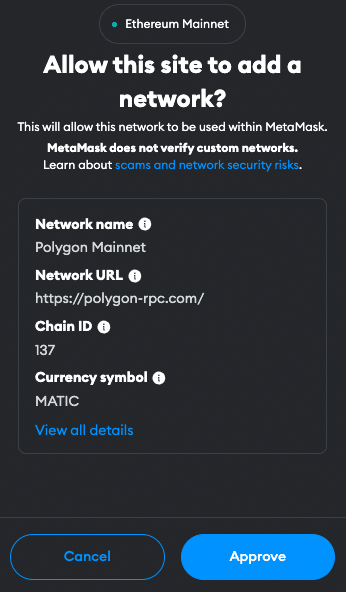
MetaMask notification to approve Polygon network -
Switch the network: MetaMask automatically populates all necessary network details. You can now switch the network.
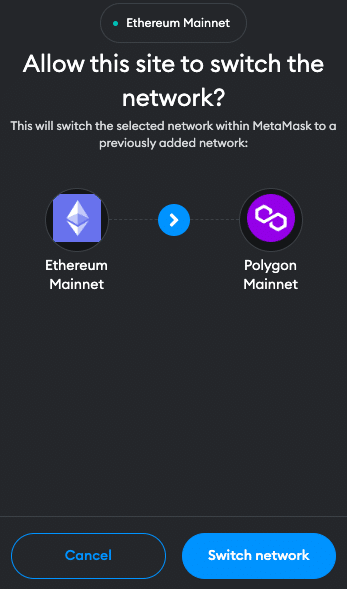
Switch to Polygon network in MetaMask
Adding Polygon to MetaMask Manually Using the Polygon Address
If you prefer a manual approach or encounter issues with the automatic method, adding Polygon to MetaMask is straightforward. Follow these steps:
Open MetaMask: Click the MetaMask extension in your browser.
-
Open menu: At the top of the app, see the current network (usually Ethereum Mainnet by default). Click it to open a dropdown menu and select "Add Network".
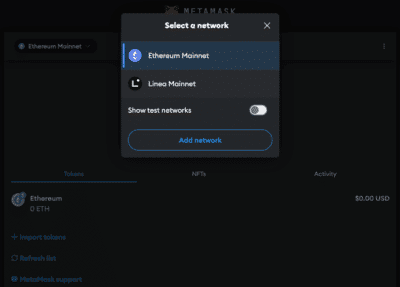
Open the network dropdown in MetaMask -
Select Network: Search for Polygon Mainnet on the list and click "Add". Check network details on screen and click "Approve".
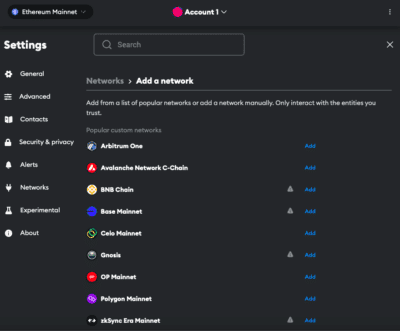
Search and select Polygon Mainnet from the network list
Alternative: Instead of adding Polygon from the list, click "Add a network manually" at the bottom of the page. Then proceed with:
-
Enter Network Details: In the new screen, enter the Polygon network details:
- Network Name: Polygon Mainnet
- RPC URL: https://polygon-rpc.com/
- Chain ID: 137
- Currency Symbol: MATIC
- Block Explorer URL (Optional): https://polygonscan.com/
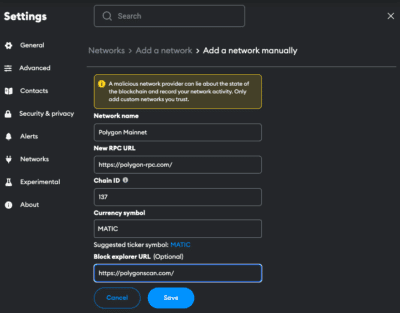
Enter Polygon network details manually in MetaMask Save and Use: Click "Save" to add the network.
Adding Polygon to the MetaMask Mobile App
Adding Polygon to the MetaMask mobile app involves a similar process to the desktop version:
Open MetaMask App: Launch MetaMask on your mobile device.
Open menu: Tap the network dropdown menu at the top of your screen and select "add network".
Select Network: Search for Polygon Mainnet on the list and click "Add". Check network details on screen and click "Approve".
Alternative: Instead of adding Polygon from the list, click "custom networks". Then:
-
Enter Network Details: In the new screen, enter the Polygon details:
- Network Name: Polygon Mainnet
- RPC URL: https://polygon-rpc.com/
- Chain ID: 137
- Currency Symbol: MATIC
- Block Explorer URL (Optional): https://polygonscan.com/
Add and Switch: Add the network.
Add Polygon Testnet Information to MetaMask
For developers or users interested in testing, adding Polygon's Mumbai-Testnet to MetaMask is beneficial.
Open MetaMask and Add Network: Follow the initial steps as described in the manual addition of Polygon.
-
Details for the Mumbai Testnet:
- Network name: Matic Mumbai
- RPC URL: https://rpc-mumbai.maticvigil.com/
- Chain ID: 80001
- Currency symbol: MATIC
- Block explorer URL: https://mumbai.polygonscan.com/
Save and Switch: Save the settings to add the Polygon Testnet to your MetaMask.
Import Polygon Tokens Into MetaMask
In order for the tokens to be visible in MetaMask, they must first be added. Polygon tokens are the equivalent of native ERC-20 tokens on Ethereum and represent a variety of assets and utilities within the Polygon ecosystem. Here's how you can import Polygon tokens into your MetaMask wallet:
Access Your Wallet: Open MetaMask and ensure you're on the Polygon network.
Find Token Contract Address: Locate the contract address of the Polygon token you want to add. This can usually be found on the project's website or on Polygonscan.
-
Add Token in MetaMask: Click on "Import tokens" at the bottom of the main MetaMask screen.
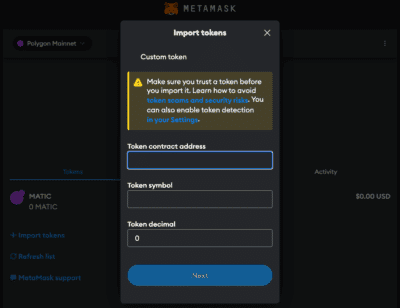
Import Polygon tokens in MetaMask Enter Token Details: Paste the token's contract address into the "Token contract address" field. The other fields should automatically fill in.
Complete the Addition: Click "Next" and "Import". The Polygon token will now appear in your wallet.
Alternative: Visit Coinmarketcap or Coingecko and find the token you want to add. Click the MetaMask icon and the token will be added to your Wallet. You can also copy the contract address and proceed as described above.
Why use the Polygon Network?
The Polygon network as a layer 2 and sidechain solution offers several advantages over Ethereum:
Lower Transaction Fees: Polygon's architecture significantly reduces transaction costs compared to Ethereum's mainnet, making it an economical choice for users looking to perform frequent transactions or interact with decentralized applications (dApps).
Faster Transactions: Thanks to its unique structure, transactions on Polygon are processed much quicker than on the Ethereum mainnet, providing a smoother and more efficient user experience.
Ecosystem Access: Adding Polygon to your MetaMask wallet grants you access to a vast and growing ecosystem of dApps, DeFi platforms, and innovative tokens, many of which are exclusive to the Polygon network.
Enhanced Scalability: Polygon addresses some of the fundamental scalability issues faced by the Ethereum network. By facilitating a multi-chain ecosystem, it allows for a significant increase in the number of transactions per second (TPS), making the network more scalable and accommodating for a growing number of users and applications.
Eco-friendly Options: Polygon is committed to becoming carbon neutral and eventually carbon negative. By optimizing transaction efficiency and pledging to invest in environmental initiatives, Polygon presents an eco-friendlier alternative for users conscious about the environmental impact of their blockchain activities.
Jump Start for MetaMask
Ensure your MetaMask wallet is set up to add the Polygon network. If you haven't installed MetaMask yet, follow these steps to do so.
Install MetaMask
Before adding the Polygon network to your wallet, the first step is to install MetaMask. MetaMask is a popular Ethereum wallet that can be used as a browser extension or a mobile app, providing an easy and secure way to interact with the Ethereum blockchain and its Layer 2 solutions, like Polygon. Here's how you can install MetaMask:
-
Download MetaMask: Visit the official MetaMask website (metamask.io) and download the MetaMask extension for your preferred browser (Chrome, Firefox, Edge, Brave or Opera). Install and follow the prompts to add the MetaMask extension to your browser.
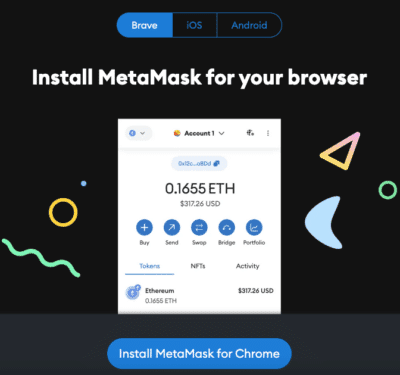
Download MetaMask from the official website -
Create a Wallet: After installation, open the MetaMask extension and select "Create a Wallet". Follow the instructions to set up your wallet.
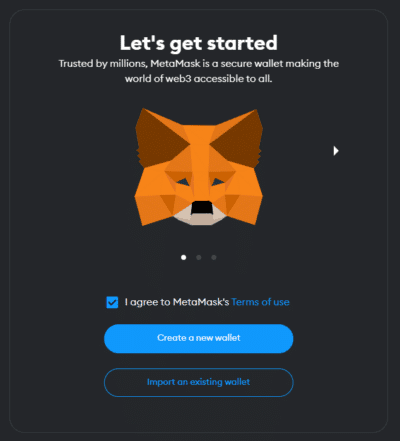
Create a new wallet in MetaMask -
Create password: Create a secure password. Password managers can help you to create unique and secure passwords.
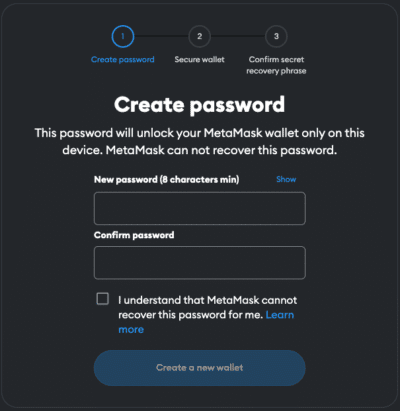
Create a secure password for your MetaMask wallet -
Secure Your Wallet: Write down your recovery phrase and store it in a secure location. This phrase is essential for recovering your wallet if you forget your password or change devices.
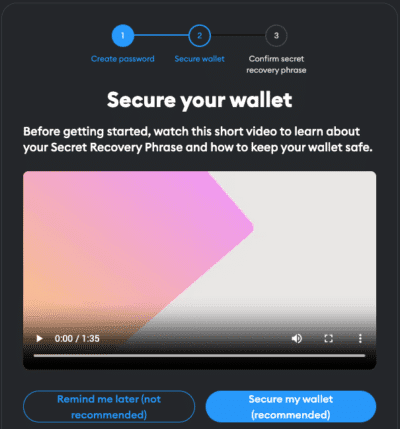
Secure your MetaMask recovery phrase -
Confirm recovery phrase: Finish the setup process by filling in the missing words.
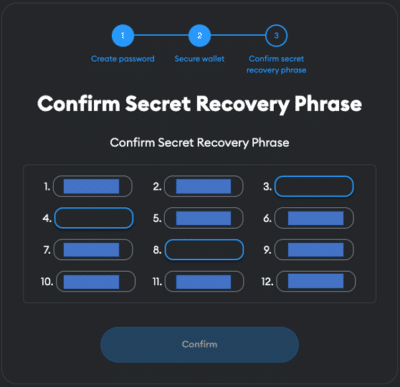
Confirm your MetaMask recovery phrase 
Complete MetaMask setup
If your device gets damaged or lost, you won't be able to access your funds without the recovery phrase. Remember, to store your secret recovery phrase safely and never disclose it to anyone.
Adding Funds to Your MetaMask Account Using the Polygon Bridge
To start using the Polygon network, you need to have some ETH in your MetaMask wallet to pay for transaction fees (gas). To move your ETH from Ethereum (layer 1) to Polygon (layer 2), follow these steps:
-
Connect MetaMask: Open the Polygon Bridge Website and connect your MetaMask Wallet.
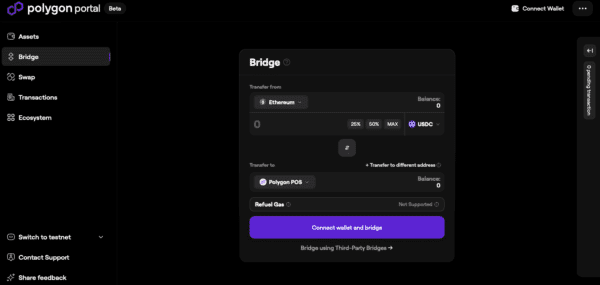
Connect MetaMask to the Polygon Bridge Select network: Select the network you want to transfer the funds from to Polygon.
Select Assets: Select the token and enter the amount you want to transfer to Polygon. Common choices include ETH, but other ERC-20 tokens compatible with the Polygon network can also be selected.
-
Transfer funds: Check the details and click "Bridge". This step will prompt a transaction in MetaMask, requiring your confirmation. Be mindful of Ethereum gas fees at this stage, as they apply when transacting on the mainnet.
In order to transfer funds to Polygon, you must have the native currency (ETH in this case) available in your MetaMask wallet. If you don't currently have any ETH in your wallet, you'll first need to transfer some to your MetaMask wallet from an Exchange or another wallet.
Receive funds: Wait for the network to process your transaction. Once confirmed, you should see your transferred funds available in your wallet on the Polygon network.
Creating a Crypto Tax Return Made Easy:
CoinTracking's tax calculator enables you to easily and accurately calculate your crypto taxes. Avoid mistakes and stress!
FAQ about adding Polygon to MetaMask
Conclusion
Integrating the Polygon network with your MetaMask wallet expands your blockchain capabilities, allowing for cheaper, faster transactions and access to a broad ecosystem of decentralized applications. Due to the multitude of applications and operations, effective management and tracking of crypto assets is crucial. CoinTracking offers a comprehensive solution that covers everything from portfolio management to tax calculation.